Create your first landscape scene
All guides · About 5 minutes · Freelement Images
Start with a landscape, add a few objects, and download your first picture without an account.
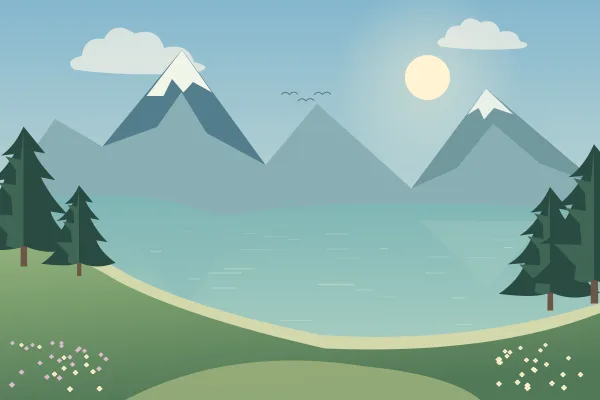
1. Start with a scene you like
Open Starter scenes and choose a landscape. Select “Edit this starter scene” to load a fresh copy into the editor. This copy autosaves separately from your main browser scene. The landscape itself is one background; its painted trees, water, and mountains cannot be dragged separately.
For your first picture, choose a background with some open space. Alpine Mirror Lake leaves room around the meadow and water, making it easier to see what each added object changes.
2. Add only a few elements
Use the object picker to add a tree, a building, or an animal. Drag the object onto a suitable part of the landscape. A house usually feels more grounded when its base sits on land rather than halfway up the sky.
Start with three objects or fewer. You can always add more, but a small set makes it easier to practice placement and size. Keep the main feature of your background visible.
3. Create a sense of distance
Select an object and drag a corner to resize it. Make objects near the bottom of the picture larger, and objects toward the horizon smaller. This is a simple way to suggest depth without drawing anything new.
Use Undo if a change does not work. After positioning something carefully, lock it before selecting another object. Unlock it when you want to adjust it again.
4. Save and download
Press Save to store the editable scene in this browser. A browser save is different from an image download: it keeps your arrangement available for editing, but is not a file backup.
Open Download, choose PNG, JPEG, or WebP, then confirm the download. PNG is a useful starting choice for illustrations. Choose Canvas size for landscape, square, portrait, or phone wallpaper. The download matches the selected dimensions. Look at the downloaded file before closing the editor.
5. Try one small variation
Move one object away from the center, or make the nearest tree a little bigger. Compare the two arrangements with Undo and Redo. When you prefer one, save it and download a new copy.
Downloading is free, but artwork permissions vary. Read Image use before using a composition commercially or redistributing its elements.
Try it in the editor
Start with the example background, then change one thing at a time.
Open the practice scene