Arrange objects with layers, size, and locks
All guides · About 4 minutes · Freelement Images
Learn to place objects in front or behind one another, resize them, and protect a finished arrangement.
1. Think in foreground and background
Objects added to the editor are separate from the background image. Each object has an order: one can appear in front of another even when their positions overlap. The painted details inside the background stay together.
Imagine a tree behind a house and flowers in front of the house. Move the tree farther back in the layer order, then bring the flowers forward. Check the edges where they overlap.
2. Resize before adding more
A scene can feel crowded simply because one object is too large. Select it and use a corner handle or the size control to make it smaller. Keep distant objects smaller than nearby objects.
Avoid making every item the same size. Try a large foreground tree, a medium tree beside the path, and a small one closer to the horizon.
3. Rotate and flip with a purpose
A slight rotation can help a plant follow a slope. A horizontal flip changes the direction of an animal or the shape of a tree silhouette. Use these controls to make repeated elements look less uniform.
Keep buildings upright unless you want a deliberately playful result. Strong rotations are easier to judge after you deselect the object and look at the whole scene.
4. Lock finished objects
Lock an object when its position is right. It remains selectable, but transforms and deletion are blocked until it is unlocked. This helps when several objects overlap in a small area.
Use Undo and Redo to compare changes. One drag is treated as one change, so undoing a movement returns the object to its earlier position rather than stepping through every pixel.
5. Practice on the woodland path
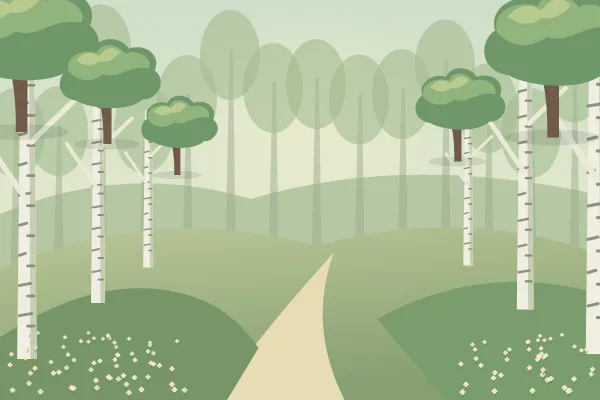
Open Silver Birch Clearing. Add one foreground object beside the path and a smaller object near its bend. Change their layer order, then put it back and compare the overlap.
Lock the first object, move the second, and save the arrangement when it feels balanced. If you are on a keyboard, arrow keys make small movements; Shift plus an arrow makes a larger movement.
Try it in the editor
Start with the example background, then change one thing at a time.
Open the practice scene